New User Tour [Estimated time: 10 – 15 minutes]
Welcome! Thanks for starting to use Ekotrope CodeCheck. In order to familiarize yourself with Ekotrope, we recommend reading this article.
Account Basics
1. Log In: Log into Ekotrope at https://app.ekotrope.com/ using your provided username and initial password.
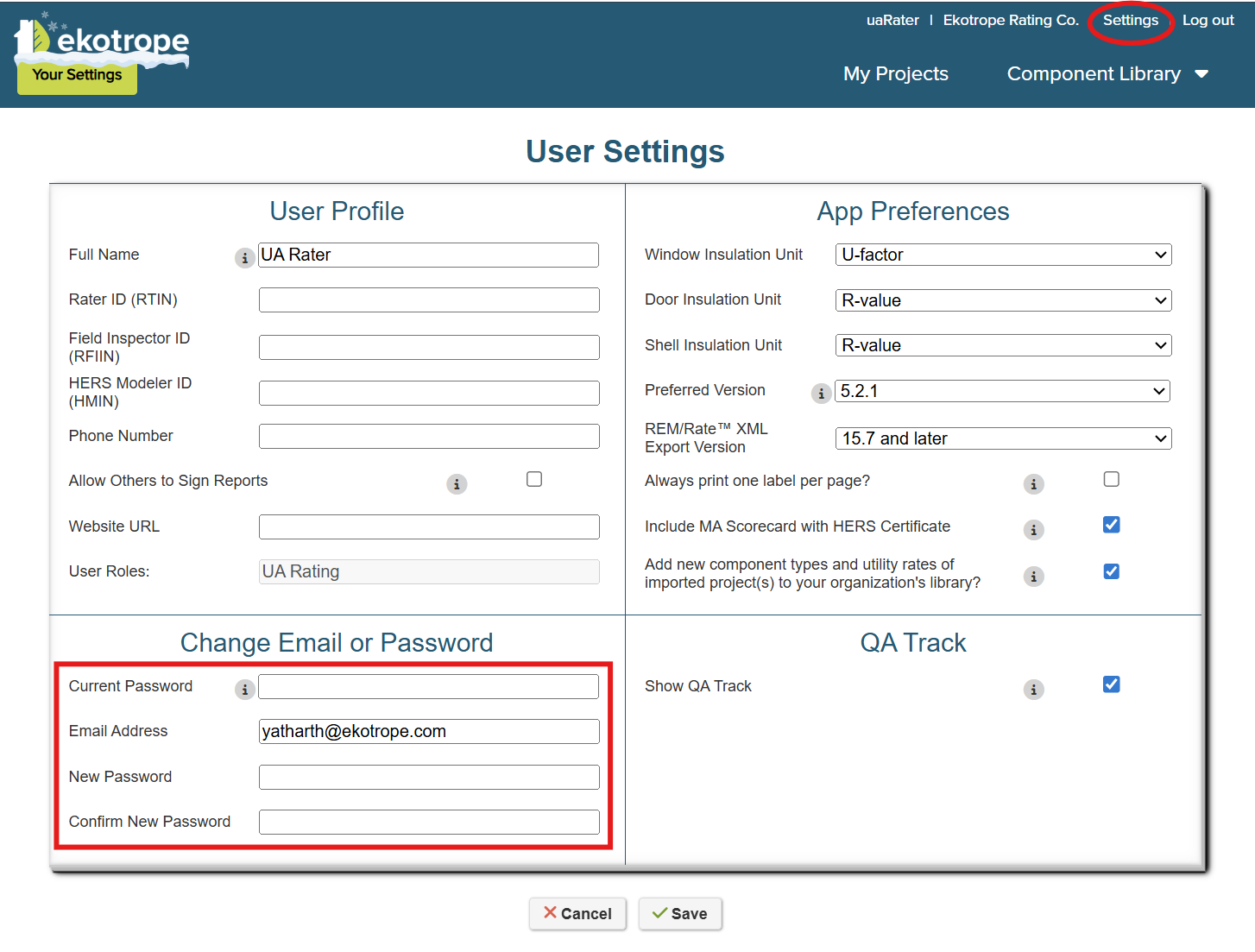
2. Set User Settings and Change Password: Choose the “Settings” option found at the top of the page. This page can be used to update settings such as your preferred display units, email address, and Rater or Field Inspector ID. Navigate to the bottom of the page to update your temporary password to one you will remember. Be sure to click “Save” to apply the changes.
Creating a New Project in Ekotrope
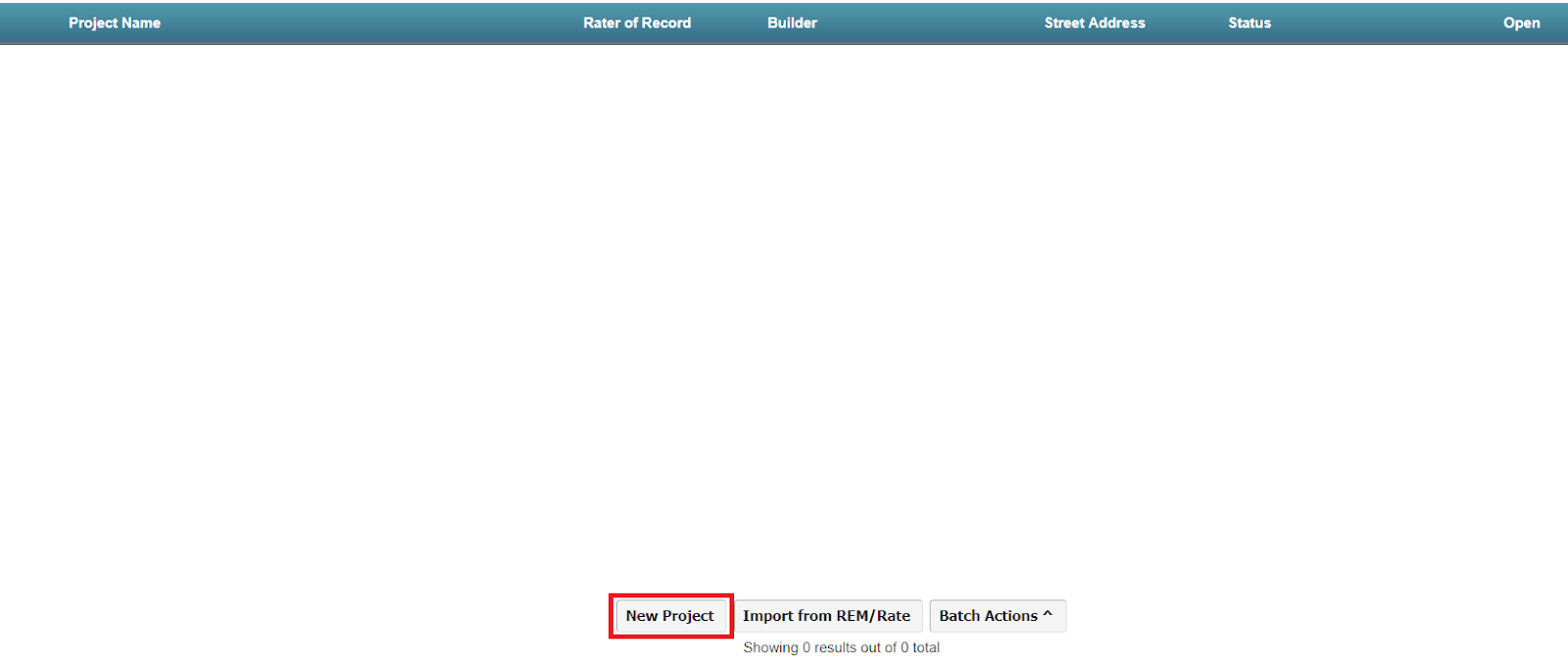
3. Open New Project Dialogue: On the bottom of the page, select the “New Project” option.
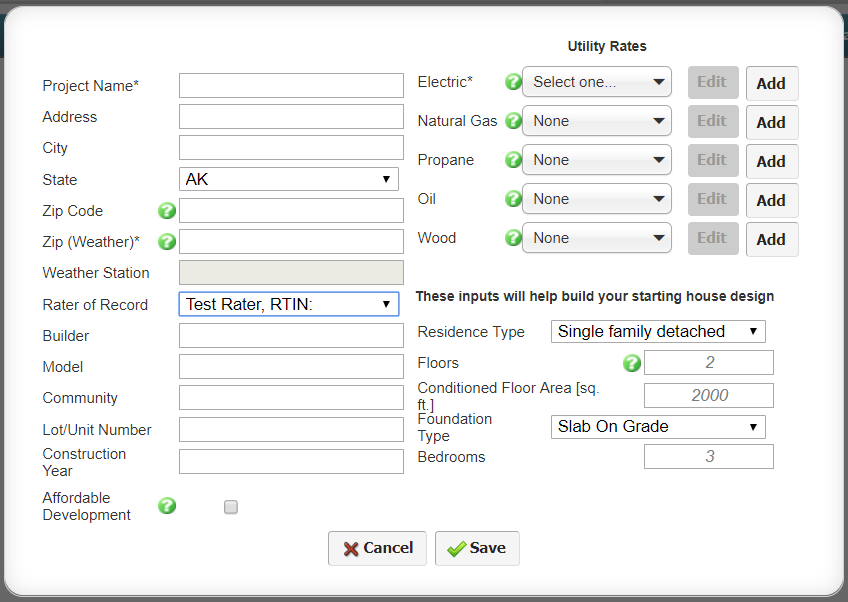
4. Input Basic Project Information: The dialogue that pops up contains fields for entering high-level information about the home. The fields that need data in order to create a project are the Project Name, Zip (Weather), and an Electricity Rate*. Changes to these values after the fact can be made in the next step of the tutorial.
* The Electricity Rate is not used in the Total UA calculation, and it will be made optional in the future. You may select the Default or Average Electricity rate from the dropdown.
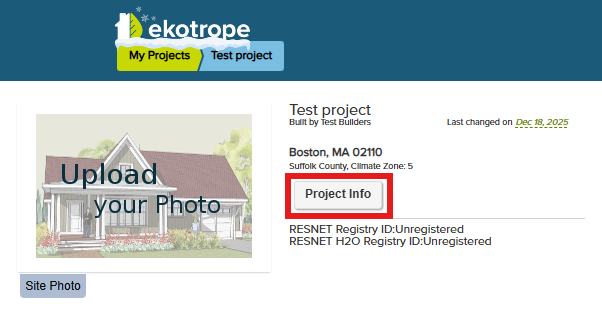
5. Changing Project Settings: Navigate to your project list using the “My Projects” buttons located at the top of the page. Find the newly imported project in your project list and click “Open” next to the project you just uploaded (it may take a moment to appear). Then click “Project Info” next to the photo.
You will see three tabs: Site Info, Rating Info, and Utility Rates.
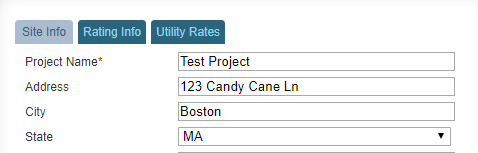
- The Site Info tab contains administrative information regarding your project. Here you can edit things such as the name of the project, the address, and the weather zip code should you choose to change climate zones.
- The Rating Info tab contains information pertaining to the actual rating as well as the Ekotrope version. You can also change what version of Ekotrope is used to calculate project data. All versions of Ekotrope are backwards and forwards compatible. For more information about which version to use, see this article.
- The Utility Rates tab contains the utility rates for your project. This tab is optional for the Total UA analysis.
Close the Project Info tab by clicking Save or Cancel at the bottom of the Project Info screen.
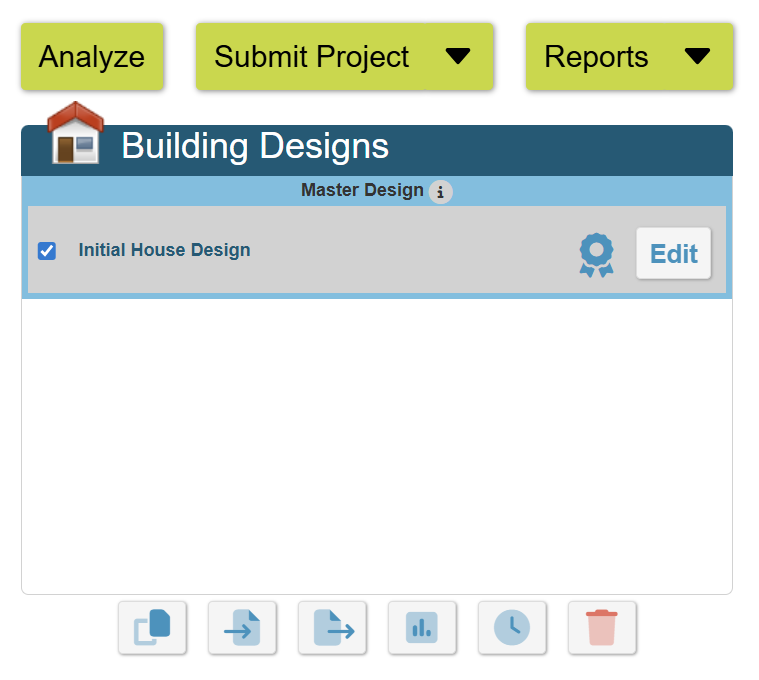
6. Open the Building Design: Ekotrope allows users to create multiple building designs to model different scenarios. Since only one design will be built, Ekotrope requires that one design be marked as the Master Design, which will be at the top and designated with a blue ribbon. The Master Design must be used for Confirmed Reports and will be used for batch functions in Ekotrope. For more information on building designs, see this help article. Open the Edit Design page by clicking the "Edit" button to the right of the Design name. The Edit Design page is where all of the information about a home design is entered. Each tab represents a different category of inputs. Take a moment to allow the “Quick Results” on the far right to load. Note the HERS score and Annual Energy Bill are shown for convenience. For more information regarding the various features of the Quick Results tab, see this help article.
7. Modifying Building Design: Once you click the "Edit" button next to a Building Design name, you'll see a screen with a bunch of tabs at the top as shown below. Each tab represents different component or section of the building design and has inputs to model the house. All the tabs that are highlighted in a light-blue background are not mandatory* for the Total UA analysis and can be left as they are.
* Except for the Additional Efficiency Options in the IECC 2021 and 2024 Prescriptive paths. Ekotrope CodeCheck requires modeling the heating/cooling/hot water equipment and/or mechanical ventilation system with appropriate infiltration rate in order to assess and qualify the home for the respective Additional Efficiency Options and Credit calculations.

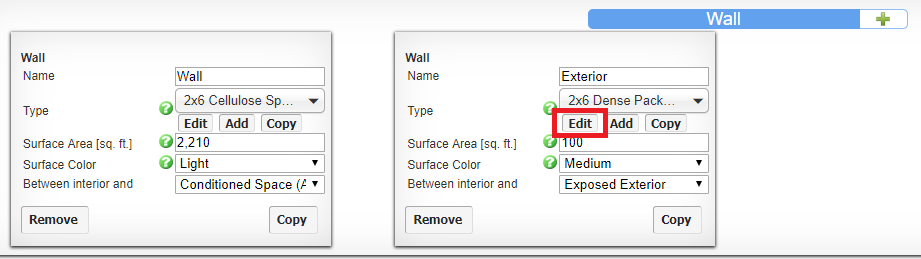
8. Change a Wall Assembly: Navigate to the Envelope tab, and scroll down to the sections for Walls. Find a wall, and click the “Edit” button found near the Type option for the wall, which will open up the Assembly Calculator. Note the Help button in the upper right corner of this pop-up window. This will take you to a help page dedicated to wall entries. These help buttons are often scattered throughout Ekotrope and are linked to the page you are viewing. Try to change the R value for the insulation of the largest non-adiabatic wall. Click “Save”, then click “Update” at the bottom of the Quick Results section on the right. Notice that the HERS score and savings will update as you edit.
Project Analysis and Reports
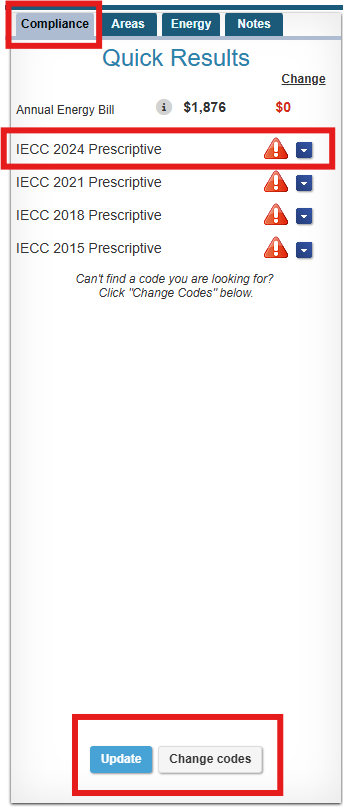
9. Run QA Checks: The Compliance Tab of the Quick Results section will show you a list of automated QA checks for multiple compliance paths. Find the relevant UA code from the code list, or click the "Change Codes" button to select the code if it is not visible in the panel. Click the blue box next to it to expand a list of code-related QA checks. Any results that aren’t green will have a short explanation of what might be wrong. Some checks are optional (which may show a yellow warning mark on failure), whereas some checks are mandatory (which may result in a red failure mark when not met).
10. Save Your Work! We recommend that you save your work at a minimum of these three key points:
- In the middle of large sets of changes. If you are making many changes to a project, we recommend that you save a few times in the middle of these changes. This would be to prevent losing large quantities of work in the event something happens (computer dies, power goes out, etc.).
- At the end of the day. If you want to leave a project open overnight, maybe to remember where you left off for the next day, just make sure to save your project. We push updates to Ekotrope every night to ensure we are always providing the most up-to-date rating software possible. In rare instances, this can result in the need to refresh your page when you get in the next morning. If you have unsaved changes, then you might lose some of that work.
- When the project is done. This one is fairly obvious, but it can't hurt to bring it up again: don't forget to save your work when everything is said and done!
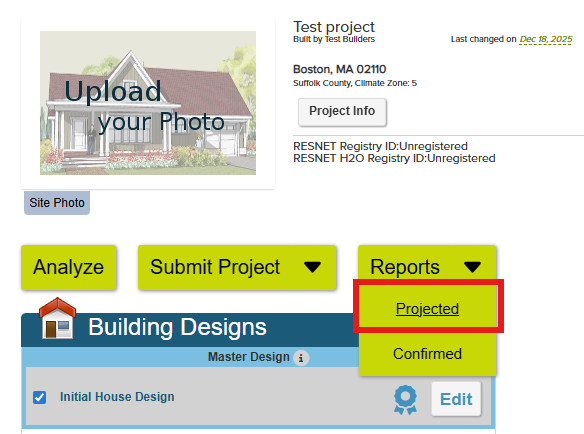
11. Print Reports: Click “Save and Close” at the bottom of the editing interface. Hover over the large yellow “Reports” button; click “Projected.” Check all relevant reports. Click “Ok.” You can digitally sign all reports by clicking “Sign All Reports”. If you would like to add your signature to Ekotrope, fill out the PDF in this help article and send it to support@ekotrope.com. Reports can be downloaded as PDFs by clicking the “Download Reports” button.
12. Questions Going Forward: If you have questions as you navigate through Ekotrope, please feel free to search our help documentation (remember, relevant help articles will be accessible in Ekotrope by selecting the help button at the top right of the screen). If you still have questions, please use the “Contact Support” button located at the bottom of the screen. Now that you have completed this training exercise, we hope that you enjoy Ekotrope and all it has to offer.
16. Application Availability: The application may be unavailable from 4 to 5am ET. This is when updates are deployed to our application servers, which causes some downtime. Occasionally we will also schedule maintenance where the application will be unavailable. This will not be done during US business hours, and it will be communicated ahead of time. And like all cloud services, the application occasionally has periods of downtime or unusually slow performance. We do our best to minimize these periods and will communicate with users about them as necessary.
Was this article helpful?
That’s Great!
Thank you for your feedback
Sorry! We couldn't be helpful
Thank you for your feedback
Feedback sent
We appreciate your effort and will try to fix the article