How to Share Projects with Another User
Ekotrope allows you to share copies of your projects with users outside of your organization. This article walks you through how to request this access and how to share a project once it's been set up.
Step 1: Request Project Sharing Access
Before you can share projects with a specific user, that user must be added to your organization's Project Sharable Users list. This is something that needs to be configured by the Ekotrope support team.
To request this, contact Ekotrope Support and provide the following information:
- The name of your organization
- The username or email address of the user you'd like to share projects with
Once the Ekotrope team has added that user to your organization's Project Sharable Users list, you'll be ready to start sharing projects with them.
Step 2: Share a Project
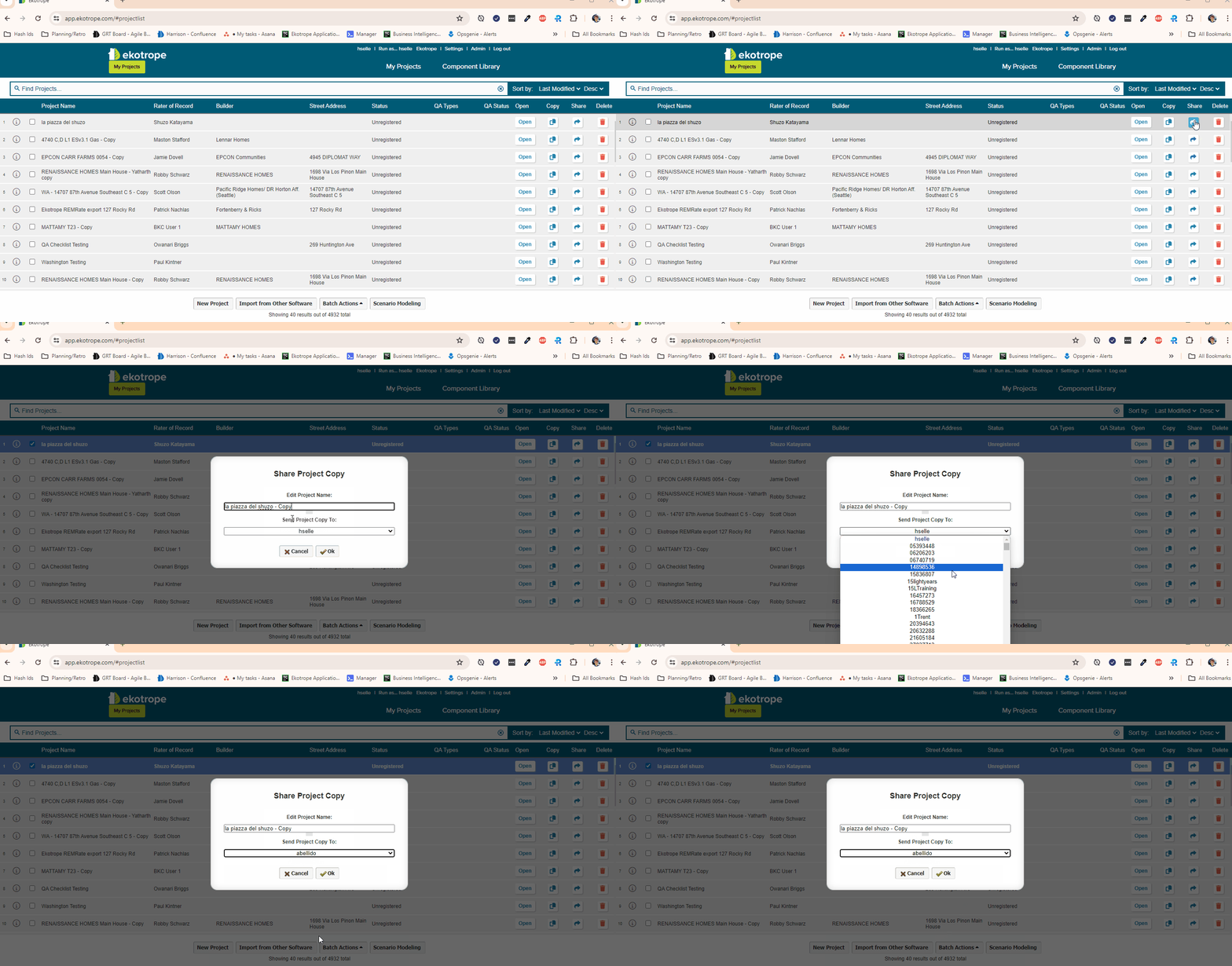
Once the user has been added to your organization's Project Sharable Users, you can share project copies directly from the My Projects screen.
- Log in to your Ekotrope account.
- Navigate to the My Projects screen.
- Locate the project you want to share.
- Use the Share option next to that project to share a copy with the eligible user.
The recipient will receive a copy of the project in their account.
Notes
- Sharing creates a copy of the project — changes made by the recipient will not affect your original.
- You can only share projects with users who have been pre-approved and added to your organization's Project Sharable Users list by the Ekotrope team.
- If you're unsure whether a user has been set up for sharing, reach out to Ekotrope Support before attempting to share.
Need help? Contact the Ekotrope Support team and we'll be happy to assist.
Was this article helpful?
That’s Great!
Thank you for your feedback
Sorry! We couldn't be helpful
Thank you for your feedback
Feedback sent
We appreciate your effort and will try to fix the article