Welcome to Ekotrope CODE, our Total UA Calculator for the IECC compliance path. This guide covers how to open it, enter your project information and envelope components, read your results, explore tradeoffs, and download a PDF report.
Ready to run a compliance report? Try Ekotrope CODE free →
1. Introduction: What is Total UA?
The Total UA compliance path is one way to show a home meets the energy code. Instead of meeting prescriptive R-value or U-factor requirements component by component, the Total UA path lets you trade off across the building envelope. A better window here, a thicker wall there. The home complies as long as the total building thermal envelope UA stays at or below the prescriptive Reference UA.
Ekotrope CODE does this math in real time and tells you whether the home passes.
How to get access: Ekotrope CODE access is provisioned by the Ekotrope team. Contact support@ekotrope.com to get started.
For the building science behind UA (what U-factor and area mean, how component UA values are calculated, and what each IECC version requires), see the companion article: Understanding UA Compliance.
2. Accessing Ekotrope CODE
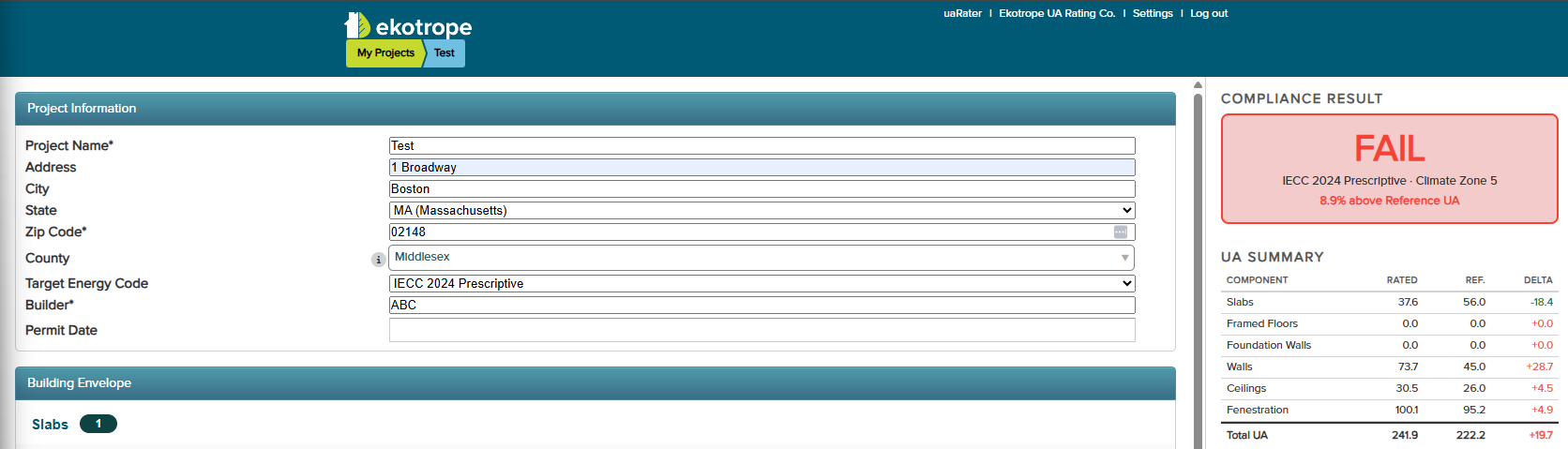
Ekotrope CODE opens automatically when you open a project. Your UA_RATING role takes you straight there from the project list, so you don’t need to navigate through the design editor.
- Log in to Ekotrope at https://app.ekotrope.com/ with the username and initial password we sent you. The first time you log in, click Settings at the top of the page to change your password and pick your preferred display units, then click Save.
- If you don’t already have a project, click New Project at the bottom of the page and enter the required information to create one.
- Find the project on your list and click Open.
- The Ekotrope CODE page opens. To return to your project list, click Close at the bottom.


Tip: Ekotrope CODE is a one-page workspace. You don’t need to model the home anywhere else. Just enter what UA needs.
3. Project information
This section contains general information about the project site. Three fields are required (marked with *): Project Name, Zip Code, and Builder. The rest are optional but worth filling in for clean reports.
For detailed information about individual fields, please refer to Project Information article.
Zip code and state do the heavy lifting. Once you enter a zip code, Ekotrope CODE auto-populates the county and uses the climate zone behind the scenes to look up the right prescriptive Reference UA for your Target Energy Code. Selecting a state also auto-updates the Target Energy Code dropdown to include any state-specific codes that apply.
4. Adding components
Below the project information is the Building Envelope section, with a separate sub-table for each envelope component. Every project shows all the tables. The count badge next to each section header shows how many rows you’ve added.
What you’ll see at the start
A new project opens with a minimum starter set: one Slab, one Above-Grade Wall, few Windows (assigned to that wall), and one Ceiling. Edit the values to match your home, add rows for additional assemblies, or delete the defaults if they don’t apply.
What’s required?
Ekotrope CODE doesn’t require any specific component to be present. The only hard rule is that the total UA has to come out positive, which means at least one component needs a row with a real surface area. In practice:
- Only model components that are part of the building thermal envelope, the boundary between conditioned (heated and cooled) and unconditioned space. For example, the wall between conditioned space and an attached garage is part of the thermal envelope; the wall between the garage and outside is not. Ekotrope CODE counts every component you enter, so don’t add components that lie outside the envelope.
- Add rows to whichever tables apply to your home. A slab-on-grade home has no Foundation Walls. A single-story ranch has no Skylights. Leave tables that don’t apply empty.
- Most homes will have walls, ceilings, and floors at minimum. If all three are empty, the calculation can’t produce a valid result.
- You don’t need a placeholder row for tables you’re skipping.
For more details on individual components, please refer to Building Envelope Components article.
5. Understanding results
The Compliance Result panel sits at the top right of the page and updates live as you edit components.
PASS / FAIL
The status badge at the top of the panel shows:
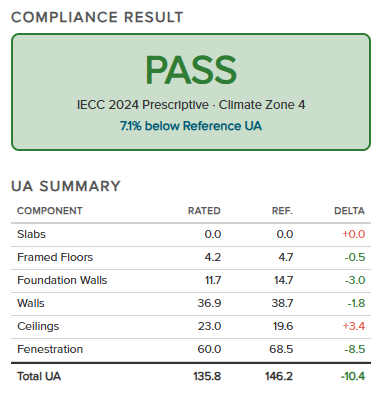
- PASS. Your Rated UA is at or below the Reference UA. The home meets the Total UA path.
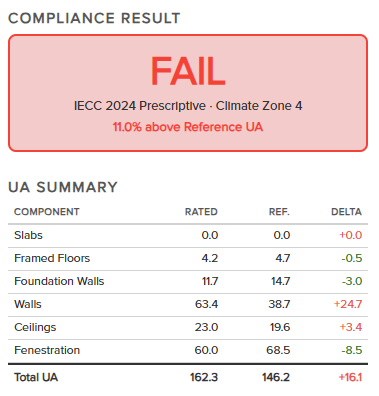
- FAIL. Your Rated UA exceeds the Reference UA. Improve at least one assembly (or correct an input) to comply.
Right under the badge you’ll see your Target Energy Code and Climate Zone (for example, “IECC 2024 Prescriptive · Climate Zone 4”), followed by the margin (for example, “11.0% above Reference UA”).
UA Summary
Below the badge, the UA Summary table breaks the result down by component group with three columns:
- RATED. The UA of what you’ve entered.
- REF. The Reference UA: what the home would total if every assembly exactly met the prescriptive U-factor for your climate zone and code.
- DELTA. Rated minus Reference. Negative is good (you’re below the prescriptive value); positive is over.
The rows group some components together for readability:
- Slabs
- Framed Floors
- Foundation Walls
- Walls (Above-Grade Walls)
- Ceilings
- Fenestration (Windows or Glass Doors, Opaque Doors, and Skylights combined)
- Total UA
Use the DELTA column to see at a glance which group is helping or hurting compliance.
Margin
The margin line under the badge tells you how much room you have, expressed as a percentage of Reference UA:
- “9.1% below Reference UA” means you’re passing with about 9% headroom.
- “11.0% above Reference UA” means you’re failing by 11%. Improve the envelope or reduce window/door area.
 |  |
6. Using the Trade-off Explorer
At the bottom of the page is the Trade-off Explorer. It’s a grid with one column per component type (Slab, Framed Floor, Foundation Wall, Above Grade Wall, Ceiling / Roof, Opaque Door, Glazing, Skylight). Each column lists alternative values for that component, with a delta percentage showing how the home’s margin would change if you applied that alternative.
- Green cells are improvements: your home would move further toward (or further into) below Reference UA.
- Red cells are worsenings: your home would move closer to (or further into) above Reference UA.
- The percentage is the change to the current margin, not the resulting margin itself. So if you’re currently 11% above Reference and you see +22% green on a wall option, applying that wall would put you roughly 11% below Reference (passing).
For more information about the trade-off explorer, please refer to Trade-off Explorer article.
7. Saving and reports
Saving
The action buttons sit at the bottom right of the page: Cancel, Save, and Generate Report. Click Save any time to commit your changes. We recommend saving:
- In the middle of large sets of changes, so you don’t lose work if your computer or network has a hiccup.
- At the end of the day, if you’re leaving the page open overnight. Ekotrope deploys updates nightly and may require a refresh in the morning, so saving first protects in-progress edits.
- When the project is done.
Generating a PDF report
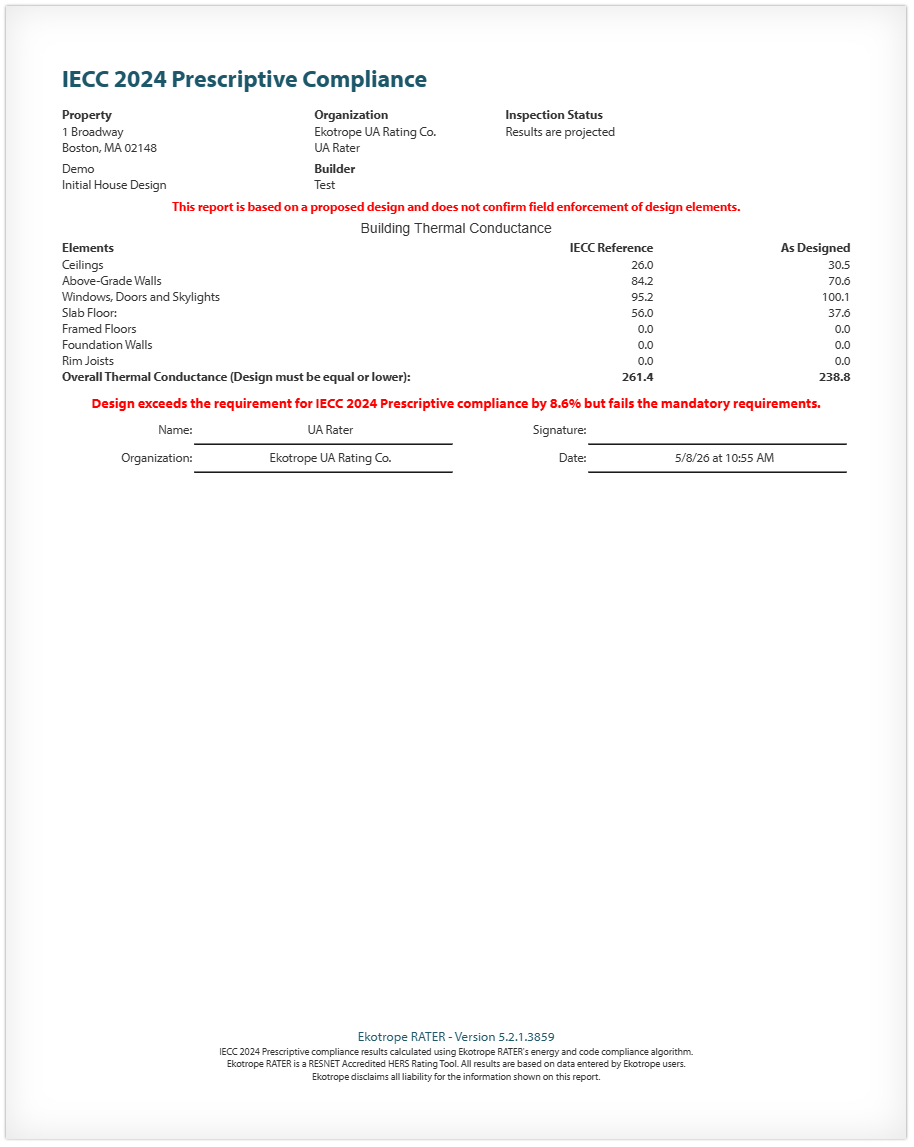
Ekotrope CODE generates official UA compliance PDFs for every IECC version from 2006 through 2024. The naming follows your code version: IECC 2024 Prescriptive Compliance for IECC 2024, and IECC YYYY Building UA Compliance for IECC 2006 through 2021.
To generate a report:
- Save the project.
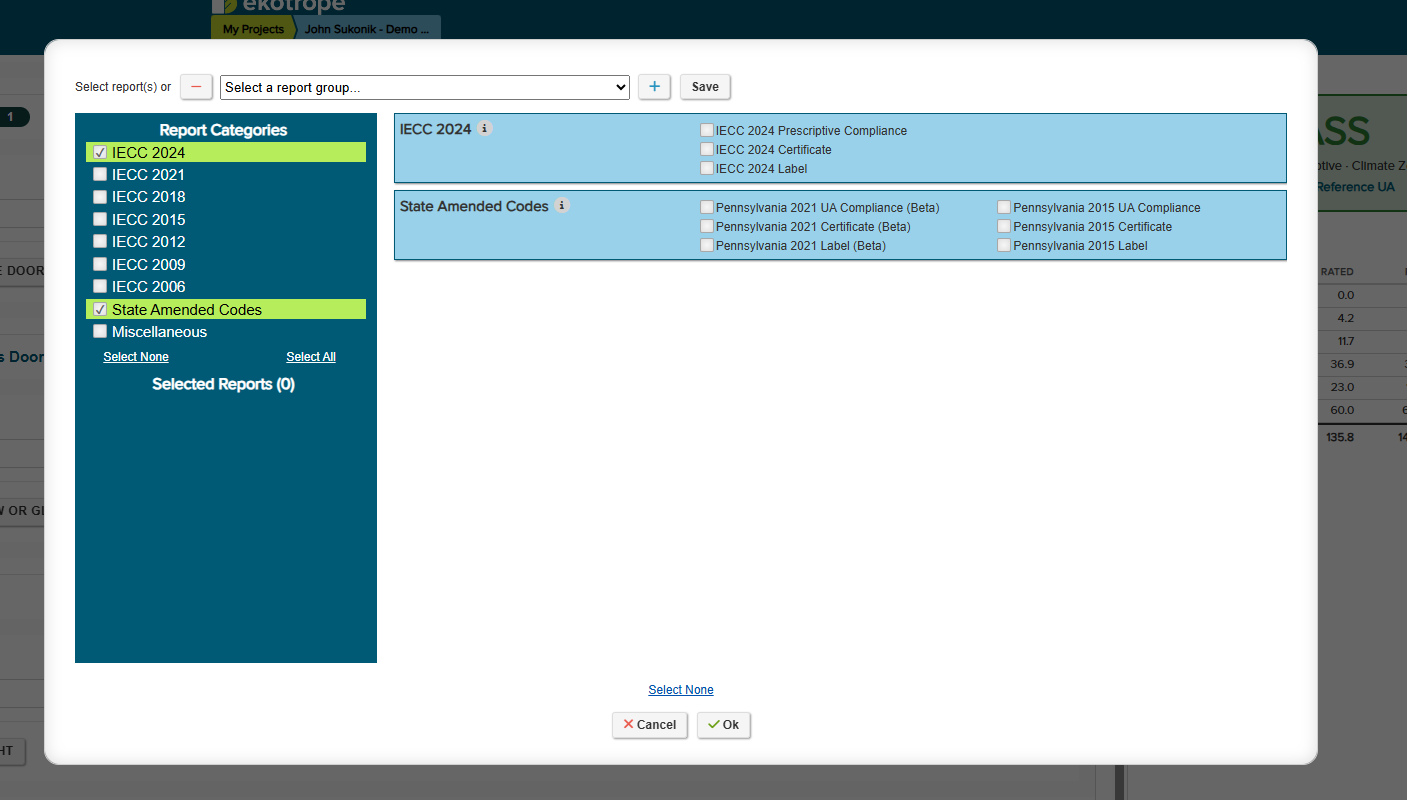
- Click Generate Report at the bottom right. The Select Reports dialog opens.
- In the left panel, pick a report category. Each IECC version has its own category, plus State Amended Codes (for jurisdictions with their own variants, like Pennsylvania) and Miscellaneous.
- In the right panel, check the report(s) you want. Each IECC version offers a Compliance PDF (the UA compliance report for code submittal) along with a Certificate and Label.
- Click OK to generate.
The compliance PDF includes the project info, every component you entered, the PASS/FAIL result, the Reference vs. Rated UA breakdown, and the margin. It’s designed to be submitted directly to a code official.
To digitally sign reports, click Sign All Reports. (To set up your digital signature, contact support@ekotrope.com.)
8. FAQs
Do I need to fully model the home elsewhere in the Ekotrope app to use Ekotrope CODE?
No. Ekotrope CODE is standalone. You only need the project info and envelope components on this one page.
Can I use Ekotrope CODE without picking a HERS rater or modeling the mechanical equipment?
Yes. UA depends only on the building envelope, the climate zone, and the energy code. Mechanical equipment isn’t part of the calculation.
Why is the climate zone wrong or different from what I expected?
Ekotrope CODE looks up the climate zone from the zip code via the standard IECC mapping. If the home is on a county border, double-check the zip and confirm with your local code official.
Ekotrope CODE says I’m failing, but my U-factors all meet the prescriptive table. What gives?
The Total UA path looks at the whole envelope, not each assembly individually. A home with all-prescriptive components normally passes, but unusually large window areas or a lot of slab perimeter can push the area-weighted total over. Check the breakdown table to see which component is driving the result.
Can I model multiple design scenarios on the same project?
In V1, Ekotrope CODE works on the project as a whole, with one set of components per project. To compare scenarios side-by-side, save your work, click Close to return to the project list, then click the Copy icon on that project’s row to duplicate it. Open the copy and edit it for the alternative scenario.
Will the Tradeoffs panel apply changes for me?
Not in V1. It’s display only. You’ll see the “what if” numbers, but to actually change a component you edit it in the table above.
Does the PDF count for code submittal?
The PDF is designed to satisfy the documentation requirements of the IECC Total UA path. Confirm acceptance with your local code official, especially if your jurisdiction has amendments.
Need more help?
Background on UA, climate zones, and component calculations: Understanding UA Compliance.
All Ekotrope help articles: https://ekotrope.freshdesk.com/support/solutions/
Email us: support@ekotrope.com
Was this article helpful?
That’s Great!
Thank you for your feedback
Sorry! We couldn't be helpful
Thank you for your feedback
Feedback sent
We appreciate your effort and will try to fix the article